
In this article, we will explore the process of leveraging Azure AI Search import and data vectorization wizard to effortlessly create vector embeddings. By using this wizard, you can seamlessly partition your content and apply a text embedding model from Azure OpenAI Service to efficiently vectorize it. This ensures that your content is indexed, leading to improved performance for search queries. Whether you’re handling vast amounts of documents or looking to enhance the search functionality of your application, this guide will provide you with the tools and knowledge to harness the power of Azure AI Search for optimized content retrieval.
In this article
- Prerequisites
- What is Azure AI Search
- Setting up Azure AI Search Service
- Deploying an Embedding Model with Azure OpenAI Service
- Azure AI Search Import and Vectorize Data
- Validating Azure AI Search Vectors
Prerequisites
- If you don’t have an Azure subscription, create an Azure free account before you begin.
- Follow the tutorial available here to set up and deploy an Azure OpenAI Service resource.
- Accessible documents in Azure Storage Account for Azure AI Search import and vectorization wizard.
- If you do not have an Azure Storage Account, follow this tutorial to create one.
- Download and extract the sample feature requirements documents if you require PDF documents to complete the tutorial: feature_request_documents.zip
What is Azure AI Search
Azure AI Search is a cloud-based solution offering advanced search capabilities for mobile and web app development. It enables seamless integration of robust search functionalities without the need to manage infrastructure or search algorithms. Developers can craft personalized search experiences with features like autocomplete, filtering, and AI-driven cognitive skills for content enrichment and semantic search.

Key Features of Azure AI Search
- Versatile Search Engine: Supports vector search, full-text search, and hybrid search across a search index.
- Advanced Indexing: Includes integrated data chunking and vectorization (preview), lexical analysis for text, and optional AI for content extraction and transformation.
- Comprehensive Query Syntax: Offers rich query options for vector queries, text search, hybrid queries, fuzzy search, autocomplete, geo-search, and more.
- Scalability and Security: Benefits from Azure’s robust scale, security, and global reach.
- Seamless Azure Integration: Integrates seamlessly with Azure’s data layer, machine learning layer, Azure AI services, and Azure OpenAI.
Setting up Azure AI Search Service
Our initial step involves establishing the Azure AI Search service for the purpose of importing and vectorizing our data. You should first sign in to your Azure subscription on the Azure portal, then proceed to select Create a resource and search for Azure AI Search. Once the service has been located, proceed to select Create.


- Fill in Project Details
- Fill in Instance Details
- Provide a name for your service
- Choose your closest region, closest to the data
- Select the Free Pricing Tier
- Click on Review + create

Deploying an Embedding Model with Azure OpenAI Service
Azure OpenAI offers a powerful platform for deploying machine learning models, with scalable computing resources, extensive integration options, and reliable performance monitoring. Additionally, Azure’s comprehensive security measures help safeguard sensitive data and ensure compliance with industry standards, making it an ideal choice for deploying machine learning models and enabling seamless integration with existing Azure services.
The import and vectorization wizard within Azure AI Search required access to an Azure OpenAI deployed text embedding model. If you do not have a text embedding model in Azure OpenAI, please complete the following steps:
Select Go to Azure OpenAI Studio from the Overview section of your Azure OpenAI service.

Create a new deployment for text embeddings in Azure OpenAI Studio by navigating to the Deployments section and selecting the + Create new deployment option.

The deployment model window will be displayed upon the selection of + Create new deployment.
- Select a model: text-embedding-ada-002
- once selected the form will expand with addition fields specific to the model type
- Deployment name: Give you model a meaningful name
- Click Create

Azure AI Search Import and Vectorize Data
Now that our embedding model and AI Search service have been deployed, we are ready to proceed with the execution of the Import and vectorization wizard. In the Azure portal go to the Overview section of our recently created Azure AI Search service and select Import and vectorize data.

The first task in the process will involve connecting your data. In this step, I am demonstrating a connection with an Azure storage account that holds PDFs of project requirement documents.

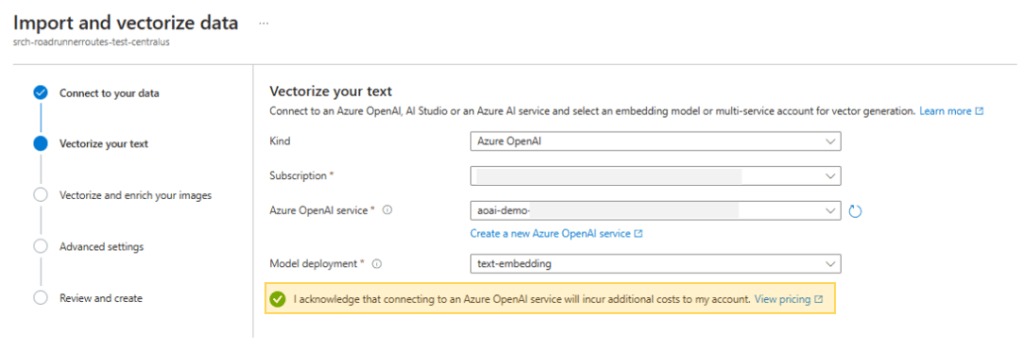
Next, we will establish a connection with our Azure OpenAI deployed embedding model. It is crucial to ensure that you thoroughly review and acknowledge the pricing details associated with it.
Under advanced settings, we will configure the import schedule. Although numerous options are available for indexing the frequency of our document data, we will simply choose Once for this tutorial.

Available index scheduling options.

Finally, the indexer will be created and executed. The Objects name prefix will serve as the representation of the vector index and will be utilized accordingly for conducting a vector search in an implemented RAG system.

Click Create
Validating Azure AI Search Vectors
After successfully completing the Azure AI Search import and vectorization wizard, we will gain the capability to access our index and execute queries.
From within your Azure AI Search service, navigate to the Indexes section under Search management. Next, choose the index that was created using the wizard; it’s name will correspond to the “objects name prefix” specified during the review and creation process.

Selecting the vector index allows for a straightforward vector search on the imported data. Having imported PDF requirement documents for a supply chain application, it becomes possible to conduct a search for specific requirements related to ‘route optimization’. This process results in the retrieval of specific matching text chunks and embeddings.

Conclusion
In this guide, we explored how to use Azure AI Search and the data vectorization wizard to create vector embeddings effortlessly. By partitioning content and applying an embedding model from Azure OpenAI Service, you can efficiently vectorize and index your content, enhancing search query performance.
Azure AI Search provides a robust, cloud-based solution with advanced search capabilities and seamless integration with Azure services. With its versatile search engine, advanced indexing, comprehensive query options, and scalability, it is a powerful tool for developers.

 Stochastic Coder
Leave a reply to Creating Intelligent Systems for Jira with Azure OpenAI and AI Search – Stochastic Coder Cancel reply