
This article explores an advanced application of large language models (LLMs), focusing on how Azure AI Search and Azure OpenAI Service can create an efficient system for managing Jira issues. Azure AI Search leverages vector search capabilities to intelligently retrieve relevant documents based on the context of user queries, while Azure OpenAI Service enhances the system by generating accurate and detailed responses for Jira issue management.

The front-end is crafted with React.js, delivering a user-friendly interface, while the back-end leverages Python FastAPI for robust and high-performance API management. The integration of Azure AI Search’s vector search and Azure OpenAI’s language models ensures that the application efficiently handles complex queries and provides valuable insights, streamlining the Jira issue management process and boosting overall operational efficiency.
In this article
- Prerequisites
- Objectives
- Download the Project
- Deploying GPT Model with Azure OpenAI Service
- What is Azure AI Search
- Rolling Out Python FastAPI Backend
- Web Application Interface developed with React.JS
- Deployment of the LLM Application
- Conclusion
Prerequisites
- If you don’t have an Azure subscription, create an Azure free account before you begin.
- Configure Azure AI Search and Azure OpenAI Service following the guidelines provided in the tutorial: Effortlessly Vectorize Your Data with Azure AI Search: Step-by-Step Tutorial
Objectives
- Document Retrieval Using Vector Search: Utilize Azure AI Search to efficiently retrieve documents through vector search, enhancing the relevance and accuracy of the search results.
- Jira Issue Creation with RAG Pattern: Leverage the Retrieval-Augmented Generation (RAG) pattern and Azure OpenAI Service to automatically create Jira issues from the retrieved documents, ensuring that the issues are populated with accurate and relevant information.
- Robust Backend System: Implement a reliable and high-performance backend system using Python FastAPI to handle user requests and interactions, ensuring seamless communication between the front-end and the AI-powered search and generation services.
- User-Friendly Front-End Interface: Develop an intuitive front-end interface using React JS, providing users with an easy-to-navigate platform for performing vector searches and managing Jira issues effectively.
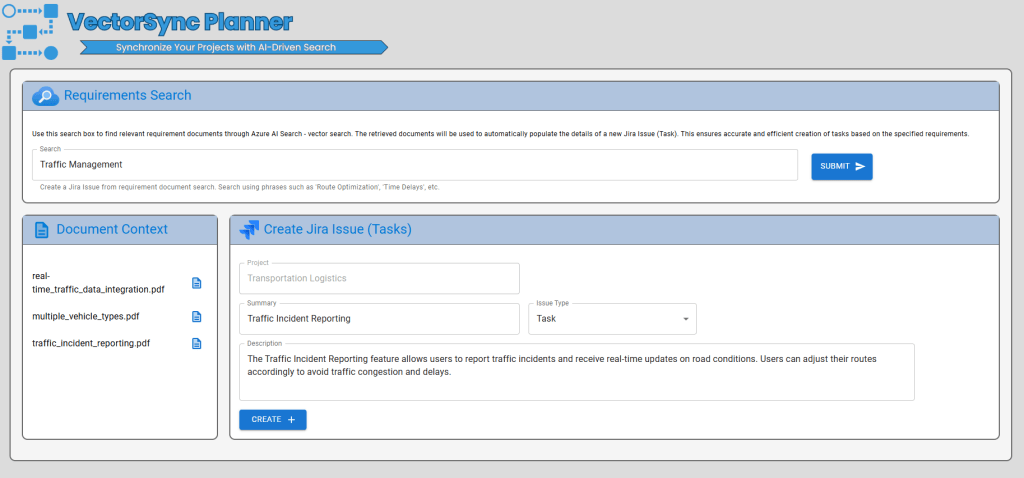
Download the Project
The tutorial uses code that you can access on GitHub.

Download the project Azure-AI-Search-Vector-Store-LangChain-RAG-Pattern-with-Jira GitHub.
What is Azure AI Search
Azure AI Search is a cloud-based solution offering advanced search capabilities for mobile and web apps, enabling seamless integration of robust search functionalities without managing infrastructure or search algorithms. Developers can create personalized search experiences with features like autocomplete, filtering, and AI-driven cognitive skills for content enrichment and semantic search.
Vector Search in Azure AI Search
Vector support in Azure AI Search involves indexing, storing, and querying vector embeddings. The search index uses a nearest neighbors algorithm to group similar vectors together. When querying, the client application collects user input and converts it into a vector for a similarity search. This process can be enhanced using integrated vectorization. Azure AI Search then returns documents with the requested k nearest neighbors (kNN) in the results.

Deploying GPT Model with Azure OpenAI Service
This tutorial presents a solution that utilizes GPT models for generative AI, enabling interactions with your data. Refer to the model availability matrix to identify the availability of specific models in each region.
As mentioned above, we will leverage a GPT model to interact with the data, specifically to generate Jira issues. We will create a new model deployment in our Azure OpenAI Studio by selecting Deployments and then + Creating a new deployment.

- Select a model: gpt-35-turbo
- The model should be either gpt-35-turbo or higher (e.g. gpt-4, etc.).
- Deployment name: solution expects the deployment name to be ‘chat’; however, this can be changes in the environment variables
- Click Create

Once we complete the deployment of our GPT model, we will proceed to set up the backend API.
Rolling Out Python FastAPI Backend
The Python FastAPI backend API is utilized to facilitate seamless integration with the frontend user interface. Its functional components include processing the LLM prompts against the data layer, particularly the Azure AI Search vectors and indexes. These prompts are structured to generate Jira issues, which the API is also responsible for managing using the Jira interface-Creating a Jira Issue.
Setting Up the Environment for the API
Create a file, named ‘.env’ in the api directory, to store the following environment variables.
AZURE_OPENAI_API_KEY='<Your Azure OpenAI API Key>'
AZURE_OPENAI_ENDPOINT='<Your Azure OpenAI Endpoint>'
AZURE_OPENAI_EMBEDDING='<Your Azure OpenAI embedding model, example:text-embedding>'
AZURE_OPENAI_API_VERSION='2023-05-15'
AZURE_SEARCH_ENDPOINT='<Your Azure AI Search Endpoint >'
AZURE_SEARCH_API_KEY='<Your Azure AI Search API Key >'
AZURE_SEARCH_INDEX_NAME='<Your Azure Search Vector Field Index>'
AZURESEARCH_FIELDS_CONTENT_VECTOR='text_vector'
AZURESEARCH_FIELDS_CONTENT='chunk'
JIRA_PROJECT_KEY='<Your Jira Project Key>'
JIRA_EMAIL='<Jira Account for Authentication>'
JIRA_API_TOKEN='<Jira API Token>'
JIRA_URL='https://<Jira Server>.atlassian.net/'| Environment Variable | Description |
|---|---|
| AZURE_OPENAI_API_KEY | Your Azure OpenAI API Key used for authenticating requests to the Azure OpenAI Service. |
| AZURE_OPENAI_ENDPOINT | The endpoint URL for accessing the Azure OpenAI Service. |
| AZURE_OPENAI_EMBEDDING | Specifies the Azure OpenAI embedding model to use, e.g., text-embedding. |
| AZURE_OPENAI_API_VERSION | The version of the Azure OpenAI API to be used, e.g., 2023-05-15. |
| AZURE_SEARCH_ENDPOINT | The endpoint URL for accessing the Azure AI Search service. |
| AZURE_SEARCH_API_KEY | Your Azure AI Search API Key for authenticating requests to the Azure AI Search service. |
| AZURE_SEARCH_INDEX_NAME | The name of the Azure Search index containing your vector field for searches. |
| AZURESEARCH_FIELDS_CONTENT_VECTOR | The field name in your Azure Search index that stores the content vectors for vector search |
| AZURESEARCH_FIELDS_CONTENT | The field name in your Azure Search index that stores the textual content of the documents. |
| JIRA_PROJECT_KEY | The key of your Jira project where issues will be created or managed. |
| JIRA_EMAIL | The email address associated with the Jira account used for authentication. |
JIRA_API_TOKEN | The API token for Jira authentication, used to securely access Jira’s API. Jira Authentication |
JIRA_URL | The URL of your Jira server, e.g., https://<Jira Server>.atlassian.net/. |
The environment variables listed below represent the field names extracted from the AI Search index established in Effortlessly Vectorize Your Data with Azure AI Search: Step-by-Step Tutorial.
AZURESEARCH_FIELDS_CONTENT_VECTOR='text_vector'
AZURESEARCH_FIELDS_CONTENT='chunk'
Next step up your Python virtual environment in the api directory by running the following:
python -m venv venvActivate your environment and install dependencies in the api directory:
venv\Scripts\activate
python -m pip install -r requirements.txt
With the environment properly configured and the variables set up, we are prepared to initialize the FastAPI server. Execute the following command from the api directory to start the server.
python app.pyThe FastAPI server launches on the localhost loopback 127.0.0.1 port 8000 by default. You can access the Swagger documents using the following localhost address: http://127.0.0.1:8000/docs

Exploring the API
The API project in the GitHub repository is structured as follows:
- Model – data modeling components using Pydantic models.
- Web – web layer components responsible for routing requests and managing communication.
- Service – The service layer components are responsible for the primary business logic and interaction with the data layer.
- Data – data layer components responsible for interacting with Azure AI Search and Jira.
The web layer of the API initiate and direct all requests to the service layer in a straightforward pattern. The service layer executes the necessary logic, such as prompt engineering, while the data layer interfaces with Azure AI Search and Jira. You can find additional information regarding this pattern in the following article: Empower your AI Agent with Azure Cosmos DB.
The service layer and data layer both utilize the singleton pattern, a design pattern that ensures a class has only one instance and provides a global point of access to it. This approach streamlines core initialization functionality, consolidating it within the init.py file for enhanced organization and maintainability of the codebase.
Service Layer
For instance, the service layer init.py is responsible for configuring the Azure OpenAI Chat variable – llm.
service/init.py
from dotenv import load_dotenv
from os import environ
from langchain_openai import AzureChatOpenAI

load_dotenv(override=False)

llm: AzureChatOpenAI | None=None

def LLM_init():

    global llm

    llm = AzureChatOpenAI(
    azure_deployment="chat", ## azure_deployment: name of chat model deployed in Azure OpenAI Studio
    api_version="2024-05-01-preview",
    temperature=.25,
    max_tokens=None,
    timeout=None,
    max_retries=2,
    )


LLM_init()
The llm variable in search.py plays a critical role in generating Jira issues based on user queries and relevant documents retrieved via Azure AI Search. After creating the input prompt using the PromptTemplate and enriching it with contextual information from the document search (AISearch.requirements_similarity_search), the prompt is passed into a chain using llm-AzureChatOpenAI.
The deployment model name for Azure OpenAI is currently specified in the initialization python file as follows: azure_deployment="chat". It is important to note that the value ‘chat’ is presently required until this is replaced with an environment variable.
service/search.py
from .init import llm
from data.AISearch import search as AISearch
from data.Jira import manage as JiraManage
from dotenv import load_dotenv
from model.jira import JiraResults, JiraIssue
from langchain.prompts import PromptTemplate
from langchain_core.output_parsers import JsonOutputParser

load_dotenv(override=False)


template:str = """Create a detailed Jira issue for {query} using the provided requirements and return the results in JSON format.
                {format_instructions}
                Use the provided requirements:
                {context}

                """

def support_issue_from_query(query:str) -> JiraResults:
    resources, docs = AISearch.requirments_similarity_search(query)

    if len(resources) ==0 :return JiraResults(JiraIssue=None,ResourceCollection=resources)


    def format_docs(docs):
        return "\n\n".join(doc.page_content for doc in docs)

    content = format_docs(docs)

    parser = JsonOutputParser(pydantic_object=JiraIssue)

    custom_rag_prompt = PromptTemplate(
    template=template,
    input_variables=["query","context"],
    partial_variables={"format_instructions": parser.get_format_instructions()},)

    rag_chain = custom_rag_prompt | llm | parser
    print(query)
    print(custom_rag_prompt)


    issue: JiraIssue
    issue =rag_chain.invoke({"query":query, "context":content})


    if issue != None:
        JiraManage.project_name_lookup(issue)
    print(issue)
    return JiraResults(JiraIssue=issue,ResourceCollection=resources)
Another noteworthy aspect to emphasize is the utilization of the JsonOutputParser. The JsonOutputParser is responsible for converting the natural language output from a language model into a structured format, specifically a JiraIssue. The formatting instructions of the parser are also leveraged to indicate to JSON response format (format instructions) to the LLM.
Our vector search is initiated by calling the function AISearch.requirements_similarity_search, which then passes the search request to the data layer.
Data Layer
data/search.py
from .init import vector_store
from model.resource import Resource
from langchain.docstore.document import Document


def results_to_model(result:Document) -> Resource:
    return Resource(resource_id = result.metadata["chunk_id"],
                        title=result.metadata["title"],
                        storage_path=result.metadata["metadata_storage_path"],
                        content=result.page_content)


def requirments_similarity_search(query:str) ->tuple[list[Resource], list[Document]]:
    docs = vector_store.similarity_search(
    query=query,
    k=3,
    search_type="similarity",
    )


    return [results_to_model(document) for document in docs],docs
The requirments_similarity_search function conducts a similarity search using a vector_store (defined in the init.py file) to retrieve documents based on a query. Subsequently, it transforms the search results (documents) into Resource objects by extracting metadata such as chunk_id, title, and storage_path. These documents are passed into the llm chain and conveyed back to the React.js web interface using the JiraResults object in the service layer.
Web Application Interface developed with React.JS
With the API running, we can finalize the solution by implementing a web user interface using React.JS for the display and generation of our Jira tickets. By leveraging the capabilities of React.JS, we can demonstrate the seamless integration of a web user experience with vector search using Azure AI Search and generative AI with Azure OpenAI.
Setting Up the Environment for React.JS
Install Node.js
Please follow the steps outlined here to download and install Node.JS.
Setting up React Project
With Node.js installed, it is necessary to proceed by installing the dependencies before testing out the React interface.
Run the following command from the web directory to perform a clean install of project dependencies, this may take some time.
npm ciNext, the project requires a file named ‘.env’ within the web directory to enable the management of environment variables. After creating the file add the following environment variable:
REACT_APP_API_HOST=http://127.0.0.1:8000| Environment Variable | Description |
|---|---|
| REACT_APP_API_HOST | Url to our FastAPI server. Default to our local machine: http://127.0.0.1:8000 |
With Node.js installed, the dependencies installed, and the environment variable created, you can commence running our web application by executing the following command.
npm startRunning the command above will launch the React JS web application.
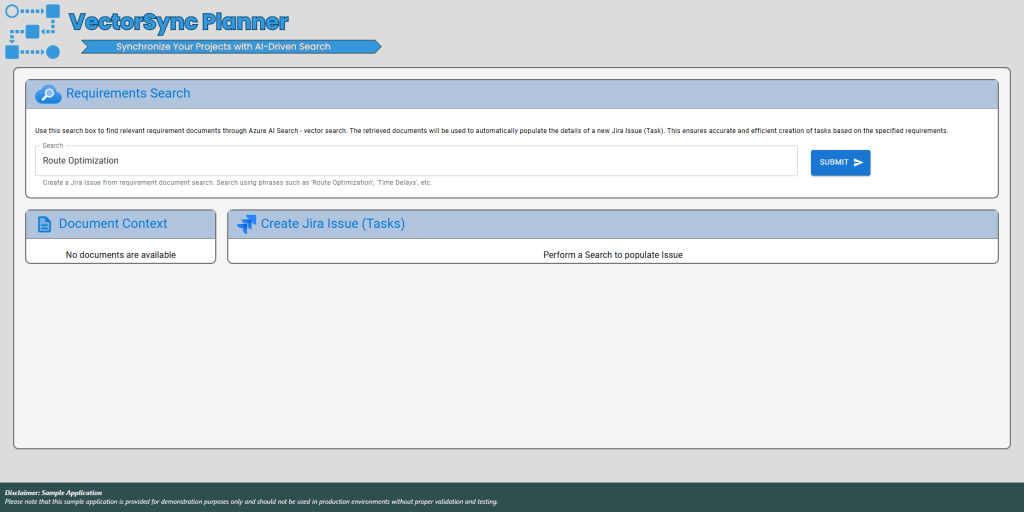
Exploring the React JS Web Interface
While the core logic is managed by the API, React.js actively handles user interactions by capturing inputs and displaying results. The web application actively organizes into four main components.
- Main: Acts as the central manager and entry point for routing.
- Search: Captures user inputs and displays responses and integrates with the backend AI Agent by managing sessions and forwarding prompts to the FastAPI service.
- IssueForm: Displays the generated Jira issue and allows users to create the issue in Jira via API calls.
- DocumentList: Shows documents returned from the Azure AI Search vector store that were passed to the LLM.

Creating a Jira Issue
With the web application running, search for ‘Route Optimization’.

This operation will trigger the use of our API, which will subsequently conduct a vector search with Azure AI Search to locate relevant documents for creating a Jira issue using our GPT model.

Clicking on the “Create +” button will once again call our API, directing the request to the Jira service in order to facilitate the creation of a new issue within Jira.

Deployment of the LLM Application
This project is designed for seamless deployment using GitHub Actions, simplifying the process of deploying to Azure App Services. It ensures efficiency and ease of use. Detailed deployment steps can be found in the accompanying article: Deploying AI Agent LLM Web Application on Azure App Service.
Conclusion
In conclusion, this article demonstrates how integrating Azure AI Search and Azure OpenAI Service can enhance Jira issue management. By leveraging Azure AI Search’s vector search capabilities for precise document retrieval and Azure OpenAI Service’s advanced language models for generating detailed responses, the system efficiently handles complex queries and provides valuable insights. With a user-friendly interface built in React.js and robust API management using Python FastAPI, this application exemplifies a powerful and streamlined approach to managing Jira issues, improving overall operational efficiency.
 Stochastic Coder
Leave a Reply