
In this article, I will provide a comprehensive walkthrough on utilizing LangChain to set up a vector store and conduct vector search on Azure Cosmos DB for MongoDB vCore using the Python programming language. The integration of LangChain with Azure Cosmos DB presents an exciting opportunity for developers and data engineers to harness the power of vector-based search capabilities within their MongoDB environments. By following the step-by-step instructions and leveraging the functionalities offered by LangChain, you will gain practical insights into implementing vector search in your own projects while benefiting from the robust features of Azure Cosmos DB for MongoDB vCore.
In this article
Prerequisites
- If you don’t have an Azure subscription, create an Azure free account before you begin.
- Setup account for OpenAI API – Overview – OpenAI API
- Create an Azure Cosmos DB for MongoDB vCore by following this QuickStart.
What is Azure Cosmos DB for MongoDB vCore
Azure Cosmos DB for MongoDB vCore allows users to harness the benefits of a fully managed MongoDB-compatible database within the Azure environment. This integration streamlines the deployment and management of MongoDB databases on the Azure cloud platform, ensuring exceptional performance and reliability for applications requiring MongoDB compatibility.
Key benefits of Azure Cosmos DB for MongoDB vCore:
- Seamless integration: Build modern apps with familiar MongoDB architecture, plus enjoy native Azure integrations and unified support.
- Cost-effective: Pay only for resources used with scalable pricing tiers and optional high availability.
- Highly flexible: Easily scale vertically and horizontally, with automatic sharding for large databases.
- Effortless migration: Migrate from MongoDB to vCore with ease, thanks to full feature compatibility.
What is LangChain
Think of LangChain as a collection of foundational elements that enables you to connect LLMs to real-world data and context. This capability empowers you to develop AI infused application (i.e. chatbots) that retain previous interactions or applications that provide responses based on specific information.
What can LangChain do?
- Integration of LLMs with real-world data: LangChain serves as a bridge between LLMs and your data sources, enhancing responses with greater relevance and depth.
- Rational decision-making: LangChain empowers context comprehension, analyzes information, and executes actions tailored to your needs.
- Streamlining intricate tasks: LangChain provides pre-built components for common tasks such as data retrieval and text generation, thereby conserving your time and effort.
Setting Up Python
In this tutorial, we’ll actively employ Python requiring its setup on your computer. We’ll use Python and LangChain to ingest vectors into Azure Cosmos DB for MongoDB vCore and conduct a similarity search. Python 3.11.4 was utilized during the development and testing of this walkthrough.
First setup your python virtual environment.
python -m venv venvActivate your environment and install dependencies:
venv\Scripts\activatepip install --upgrade --quiet pymongo openai python-dotenv
tiktoken
langchain-openai
langchain-community langchainCreate a file, named ‘.env’, to store your environment variables.
OPENAI_API_KEY="**Your Open AI Key**"
MONGO_CONNECTION_STRING="mongodb+srv:**your connection string from Azure Cosmos DB**"| Environment Variable | Description |
|---|---|
| OPENAI_API_KEY | The key to connect to OpenAI API. If you do not possess an API key for Open AI, you can proceed by following the guidelines outlined here. |
| MONGO_CONNECTION_STRING | The Connection string for Azure Cosmos DB for MongoDB vCore (see below) |
Azure Cosmos DB for MongoDB vCore Connection String
The environment variable MONGO_CONNECTION_STRING from the ‘.env’ file will contain the Azure Cosmos DB for MongoDB vCore connection string. Obtain this value by selecting “Connection strings” from the Azure portal for you Cosmos DB instance. It may be necessary to include your username and password within the designated fields.

Using LangChain Loader with Azure Cosmos DB for MongoDB vCore
We will utilize a LangChain document loader to retrieve information from a JSON document and store it into our Cosmos DB vector store.
Download sample Dataset
Download and unzip the sample JSON dataset to load into your vector database. This contains snippets from the eighth edition of ‘Rocket Propulsion Elements’ for our vector search hands-on.
Download: Rocket_Propulsion_Elements.zip.
Custom JSON Loader
We will proceed to create a JSON loader to transform the provided sample data into LangChain documents suitable for loading into Cosmos DB. A Document is a piece of text and associated metadata.
Create a new Python file named ‘jsonloader.py’ and implement the subsequent code for this task.
import json
from pathlib import Path
from typing import List, Optional, Union
import uuid
from langchain.docstore.document import Document
from langchain.document_loaders.base import BaseLoader


class JSONLoader(BaseLoader):
    def __init__(
        self,
        file_path: Union[str, Path]
        ):

        self.file_path = Path(file_path).resolve()


    def load(self) -> List[Document]:
        """Load and return documents from the JSON file."""

        docs:List[Document]=[]

        # Open JSON file
        with open(self.file_path) as file:

            data = json.load(file)

            #extract the resource (book) information
            resourcetitle = data['title']
            resource_id = str(uuid.uuid4().hex)
            pages = data['pages']


            #iterate through resource pages and create a Document for each page
            for page in pages:
                page_id = str(uuid.uuid4().hex)
                text = page['body']
                chapter = page['chapter']
                pagenumber = page['page']

                metadata = dict(
                    resource_id = resource_id,
                    page_id = page_id,
                    title=resourcetitle,
                    chapter = chapter,
                    pagenumber = pagenumber
                    )

                docs.append(Document(page_content=text, metadata=metadata))

        return docs
The given Python code creates a class called JSONLoader that is a type of BaseLoader. This class loads the sample resource (‘Rocket Propulsion Elements’) and pages from the JSON file ‘Rocket_Propulsion_Elements.json’. It then returns the resource pages as a list of Document objects.
JSONLoader Code Breakdown
- The
JSONLoaderclass is initialized with the following parameter:file_path: The path to the JSON file containing the document data.
- The
loadmethod is defined to read the JSON file and extract the document information. It returns a list ofDocumentobjects.- The load method starts by opening the JSON file specified by
file_path. - The JSON data is loaded using
json.load(file). - For each document (or “page”) in the JSON data:
- A
Documentobject is created for each page with the following extracted information.- Resource title, page content, chapter, page number, and unique IDs.
- A
- The created
Documentobjects are appended to a list calleddocs. - Finally, the list of
Documentobjects is returned.
- The load method starts by opening the JSON file specified by
Loading Data into Cosmos DB Vector Store
Next, utilize the JSONLoader that has been recently created to generate the LangChain documents for our vector store. The code below will establish a connection to Cosmos DB and create the documents.
from os import environ
from dotenv import load_dotenv
from pymongo import MongoClient
from jsonloader import JSONLoader
from langchain_openai import OpenAIEmbeddings
from langchain_community.vectorstores.azure_cosmos_db import AzureCosmosDBVectorSearch, CosmosDBSimilarityType


load_dotenv(override=True)

#variable from '.env' file
OPENAI_API_KEY = environ.get("OPENAI_API_KEY")
MONGO_CONNECTION_STRING = environ.get("MONGO_CONNECTION_STRING")

#hardcoded variables
DB_NAME = "research"
COLLECTION_NAME = "resources"
EMBEDDING_FIELD_NAME = "embedding"
INDEX_NAME = "vectorSearchIndex"


client = MongoClient(MONGO_CONNECTION_STRING)
db = client[DB_NAME]
collection = db[COLLECTION_NAME]

loader = JSONLoader('Rocket_Propulsion_Elements.json')

docs = loader.load()
The code above establishes a connection to CosmosDB using MONGO_CONNECTION_STRING environment variable and implements our JSONLoader to create the ‘docs’ to load into the vector store.
The following code will load our documents into the Cosmos DB vector store using the AzureCosmosDBVectorSearch class. It will initialize the vector store with our documents ‘docs’, apply OpenAIEmbeddings to convert text into vectors, and specify the collection and index name within the Cosmos DB.
#load documents into Cosmos DB Vector Store
vector_store = AzureCosmosDBVectorSearch.from_documents(
    docs,
    OpenAIEmbeddings(disallowed_special=()),
    collection=collection,
    index_name=INDEX_NAME)
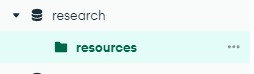
Verify the successful loading of documents using MongoDB Compass (or a similar tool).

Create Azure Cosmos DB Vector Search Index
Our final ‘loading’ step is to create the search index using the code below. store.
#Create an index for vector search
num_lists = 1 #for a small demo, you can start with numLists set to 1 to perform a brute-force search across all vectors.
dimensions = 1536
similarity_algorithm = CosmosDBSimilarityType.COS
vector_store.create_index(num_lists, dimensions, similarity_algorithm)
The num_lists parameter determines how many lists are in the index. Here, it’s set to 1 for a simple search across all vectors. ‘Dimensions’ indicates the size of the vectors. Finally, the similarity_algorithm determines the method used for similarity in the index, and in this case, it’s set to COS (Cosine Similarity). The create_index method is then utilized on the vector_store object to create the index with the specified settings.
Tuning the numLists parameter is very important for getting the best results and performance. For databases with up to 1 million documents, set numLists to documentCount/1000; for larger databases, use sqrt(documentCount). As your database grows, increase numLists for better performance. If you’re experimenting or doing small demos (such as this walkthrough), start with numLists=1 for accurate but slower search. Adjust numLists based on the size of your database and your performance needs.
Validate the creation of the cosmos vector search index:

LangChain Vector Search on Azure Cosmos DB
After our data has been loaded and the search index created, we can proceed to execute a vector search. With vector search we are able to identify similar items based on their data, rather than depending on exact matches in a property field. To illustrate, the subsequent Python script establishes a connection to Azure Cosmos DB and conducts a similarity search. Subsequently, it retrieves and presents metadata and content for the top 10 documents that correspond to the query “supersonic combustion.”
from os import environ
from dotenv import load_dotenv
from langchain_openai import OpenAIEmbeddings
from langchain_community.vectorstores.azure_cosmos_db import AzureCosmosDBVectorSearch

load_dotenv(override=True)


#variable from '.env' file
MONGO_CONNECTION_STRING = environ.get("MONGO_CONNECTION_STRING")


#hardcoded variables
DB_NAME = "research"
COLLECTION_NAME = "resources"
INDEX_NAME = "vectorSearchIndex"


#connect to Azure Cosmos DB for vector search
vector_store = AzureCosmosDBVectorSearch.from_connection_string(
    MONGO_CONNECTION_STRING,
    DB_NAME + "." + COLLECTION_NAME,
    OpenAIEmbeddings(disallowed_special=()),
    index_name=INDEX_NAME)


#query to use in similarity_search
query = "supersonic combustion"


docs = vector_store.similarity_search(query,k=10)


#format results from search
for doc in docs:
    print({'id' :doc.metadata["page_id"],
           'title':doc.metadata["title"],
            'source':f"{doc.metadata['chapter']}  (page-{doc.metadata['pagenumber']})",
            'content':doc.page_content})
Vector Search Code Breakdown
- Loads environment variables from a
.envfile usingload_dotenv(override=True). - Retrieves the connection string for Azure Cosmos DB from the environment variable
MONGO_CONNECTION_STRING. - Define variables such as the database name (
DB_NAME), collection name (COLLECTION_NAME), and index name (INDEX_NAME). - Initializes the
vector_storeobject by creating an instance ofAzureCosmosDBVectorSearch. This involves passing the connection string, database name, collection name, embedding model (OpenAIEmbeddings), and index name. - Sets up a query string for similarity search, here we are using “supersonic combustion” to bring back related documents.
- Performs the similarity search using
vector_store.similarity_search(query, k=10); k=10 limits the results to the top 10 most similar documents.
When executing the code, it will display the document content and metadata retrieved for the search query “supersonic combustion”.
Well done! You have used LangChain to load documents from a JSON document into Azure Cosmos DB for MongoDB vCore and then conducted a vector search using similarity search. Next, you can build upon this foundational work in the following series: LangChain RAG with React, FastAPI, Cosmos DB Vector: Part 1. In-addition, you can learn how to improve LLM performance with Azure Cosmos DB semantic cache. Check out the article on how to do this: Improve LLM Performance Using Semantic Cache with Cosmos DB.


 Stochastic Coder
Leave a reply to Deploying AI Agent LLM Web Application on Azure App Service – Stochastic Coder Cancel reply