
In this article, we explore creating a connection between Azure Machine Learning Prompt Flow and OpenAI. This integration offers the opportunity to utilize advanced machine learning capabilities alongside OpenAI’s innovative technologies. By connecting Azure’s strong machine learning infrastructure with OpenAI’s solutions, users can drive impactful developments, streamline processes, enhance predictive modeling, and advance AI-driven solutions in various areas. This walkthrough provides valuable insights into setting up this connection, laying the foundation for harnessing the combined potential of Azure Machine Learning and OpenAI.
In this article
Prerequisites
- If you don’t have an Azure subscription, create an Azure free account before you begin.
- Make sure the default data store in your workspace is blob type.
- If you don’t have an existing Azure Machine Learning workspace you will can quickly create: Tutorial: Create workspace resources – Azure Machine Learning | Microsoft Learn
- Setup account for OpenAI API – Overview – OpenAI API
Create OpenAI API Key
Login to your OpenAI API account and choose Create new secret key under API Keys.
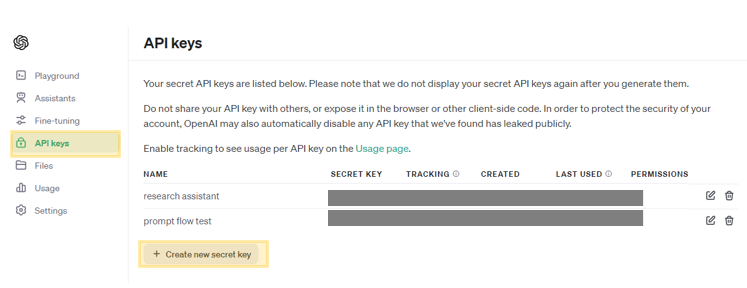
Give your API key a meaningful name.
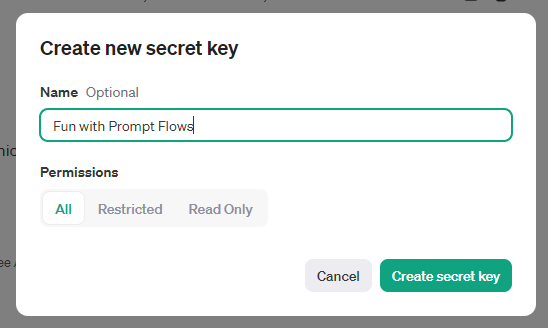
Click Create secret key and save your key, keep it secret, keep it safe!!
Set up Prompt Flow Connection
The Azure Machine Learning Prompt Flow Connection helps keep confidential credentials secure, like the secret keys for OpenAI. We’re setting up a new connection from Prompt Flow to OpenAI.
To begin, go to the homepage of the prompt flow and choose the Connections tab. Connections are shared resources accessible to all workspace members. Click on the Create button and choose “OpenAI” from the drop-down menu.
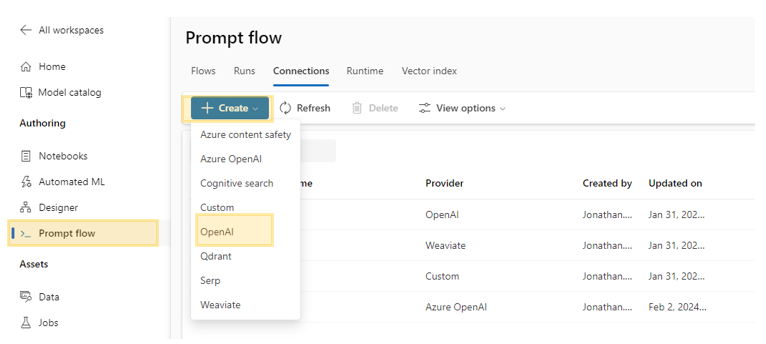
After clicking “OpenAI” a panel will open up on the right side of the screen.

| Field | Value |
|---|---|
| Name | Unique connection name |
| Provider | Defaults to OpenAI |
| API key | Paste your OpenAI API key from step “Create OpenAI API Key” |
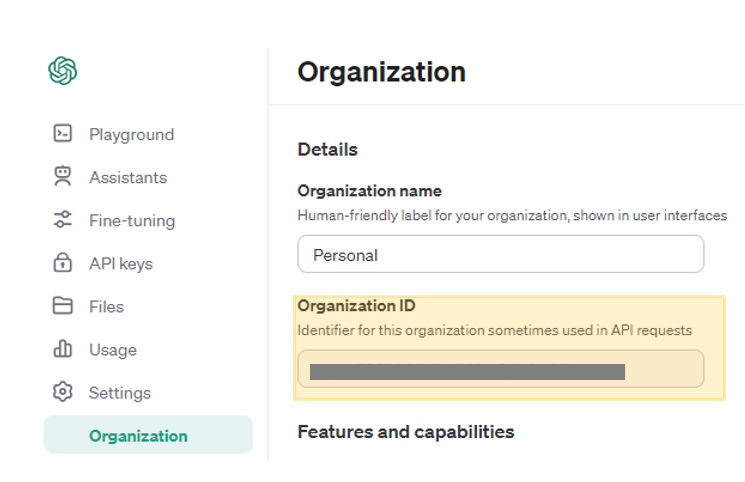
| Organization | The Organization ID located under the OpenAI organization settings page (see screenshot below) |
| Base URL | The OpenAI API base URL (I have tested with https://api.openai.com/v1) |
The Organization ID is located on the OpenAI Organization settings page.
Click Save to complete the creation of you OpenAI Prompt Flow connection.
If you have access to a Flow, your new connection will be available in the connection dropdown of the LLM tool.

Congratulations, you’ve connected to OpenAI using Prompt Flow. See the tutorial: Azure Prompt Flow with Vector Search to learn how to use this connection.


Leave a Reply