
Generative AI (GenAI) is revolutionizing technical support and customer support by delivering real-time, context-aware assistance that enhances user experiences and streamlines problem resolution. In this article, we explore how to build and deploy an Azure OpenAI RAG Customer Support Solution that answers technical support questions by integrating .NET, Semantic Kernel Function Calling, Azure AI Search, and Azure Cosmos DB.
This solution demonstrates how to seamlessly combine backend API logic, vectorized search capabilities with Azure AI Search, and a responsive front-end UI, offering businesses a powerful tool to elevate their customer support services.

To ensure scalability and efficiency, we’ll also leverage Bicep for simplified resource provisioning and deployment, along with Azure Functions for event-driven document processing and vector indexing. This comprehensive approach ensures a robust, responsive, and future-ready solution for modern customer support needs.

The complete code for the solution can be accessed in the GitHub repository: jonathanscholtes/Azure-AI-RAG-CSharp-Semantic-Kernel-Functions.
In this article
- Prerequisites
- Objectives
- Why Use RAG for Customer Support?
- What is Semantic Kernel?
- Solution Deployment
- Validate Vector Index
- Testing the Application
- Clean-Up
- Conclusion
Prerequisites
- If you don’t have an Azure subscription, create an Azure free account before you begin.
- Azure CLI (Command Line Interface)
- Python 3.11.4 installed on development environment.
- Node.js 20.11.1 installed in your development environment.
- Please follow the steps outlined here to download and install Node.JS.
- An IDE for Development, such as VS Code
Objectives
- Deploy RAG Architecture with AI Integration: Implement a Retrieval-Augmented Generation (RAG) workflow combining Azure OpenAI GPT-4, Azure AI Search, and Azure Cosmos DB to provide context-aware, generative AI responses enhanced by efficient vectorized data retrieval.
- Use Semantic Kernel for Workflow Orchestration: Integrate Semantic Kernel to orchestrate AI workflows, ensuring seamless interaction between Azure OpenAI, Azure AI Search, and Azure Cosmos DB for efficient, context-aware response generation.
- Develop .NET Backend and Event-Driven Processing: Build the backend with .NET, enabling API orchestration and leveraging Azure Functions for event-driven document processing, automatically generating embeddings and indexing documents in Azure Cosmos DB and Azure AI Search.
- Deploy with Infrastructure as Code (IaC): Use Bicep and Azure CLI to automate resource deployment, ensuring scalable, secure, and consistent infrastructure management for the solution.
Why Use RAG for Customer Support?
Retrieval-Augmented Generation (RAG) is an effective approach for customer support, blending the natural, conversational abilities of generative AI with the accuracy and relevance of retrieval systems for up-to-date information. In this solution, we use Semantic Kernel to orchestrate conversational AI and information retrieval, leveraging domain knowledge stored in Azure AI Search and Azure Cosmos DB
What is Semantic Kernel?
Semantic Kernel is an advanced framework that simplifies AI orchestration by providing tools to integrate natural language processing, embeddings, and AI model inference into a single, cohesive workflow.
Semantic Kernel is used to:
- Simplify AI Integration: Abstracts complex AI processes, enabling developers to focus on creating the solution rather than managing the intricacies of AI model integration.
- Orchestrate AI Workflows: Ensures a seamless process flow for both data retrieval and AI model inference.
- Enhance Contextual Awareness: By managing the context of incoming queries, it enables more accurate and relevant responses.
Solution Deployment
This deployment process varies from earlier articles and guides; kindly let me know if you prefer a step-by-step method or the implementation of deployment scripts, as demonstrated in this solution.
Clone the Repository
Start by cloning the repository from GitHub:
git clone https://github.com/jonathanscholtes/Azure-AI-RAG-CSharp-Semantic-Kernel-Functions.git

cd Azure-AI-RAG-CSharp-Semantic-Kernel-Functions
Deploy Solution Using Bicep
Bicep is used for Infrastructure-as-Code (IaC), enabling you to manage and deploy Azure resources programmatically. This allows for automated and repeatable deployments.
First, navigate to the infra folder where the Bicep files are located:
cd infraThen, use PowerShell to deploy the solution with Bicep and additional code deployment scripts:
.\deploy.ps1 -Subscription '[Subscription Name]' -Location 'southcentralus'Specify a location that corresponds with your nearest region and possesses adequate capacity for the Azure services being utilized.
This script provisions all the necessary resources in your Azure subscription, including:
- Azure Cosmos DB for storage of product documentation and chat history.
- Azure AI Search for vector storage and search capabilities.
- Azure Functions for event-driven document processing and index loading.
- Azure OpenAI for generative AI responses.
- Azure Storage Account for technical support HTML documents
- Azure Web App for hosting .NET API.
The deployment process can take as long as 20 minutes to finish. Upon completion, you will have a newly created Azure Resource Group titled rg-chatapi-demo-[location]-[random].
Upload Documents for Azure AI Search
Upload the HTML files, found in the documents folder of the repo, to the load container in the Azure Storage Account. Once uploaded, the Azure Function will trigger automatically, creating vector embeddings for the documents and indexing them in Azure AI Search.

The documents will transition from the load container to completed container upon the successful processing by the Azure Function.
Setting Up the Environment for the API
The Azure Cosmos DB connection string is not incorporated into the API environment variables during the deployment process, so it will need to be added manually. Through the Azure portal, we can modify the Environment variables of our newly created API.
Azure Cosmos DB Connection String
Access the connection string by selecting Keys under Settings. Copy the string value.

Adding Environment Variables
In-order for our Semantic Kernel function to be able to access product information we will need to add the Azure Cosmos DB connection string to the Environment variables.
- Select Environment variables under Settings
- Ensure the App settings tab is selected
- Add the connection string value to CosmosDb_ConnectionString
- Click Apply

Validate Vector Index
The Loader Azure Function will trigger and upload the index as the documents are added to the Azure Storage Account. We can view the index and number of documents in the index from our Azure AI Search Service.
Validate Index Creation
You can quickly verify that you have the index azure-support with the indexed documents by viewing indexes.

Grant Access to Query Index from Portal

If you received an error attempting to query the index from the portal you will need to set the API Access control to both.

Testing the Application
Once everything is set up, you can test the application by visiting the deployed web app (e.g., api-chatapi-demo-[random].azurewebsites.net) and submitting a query like “How do I fix Access Denied with Azure Blob Storage?”.
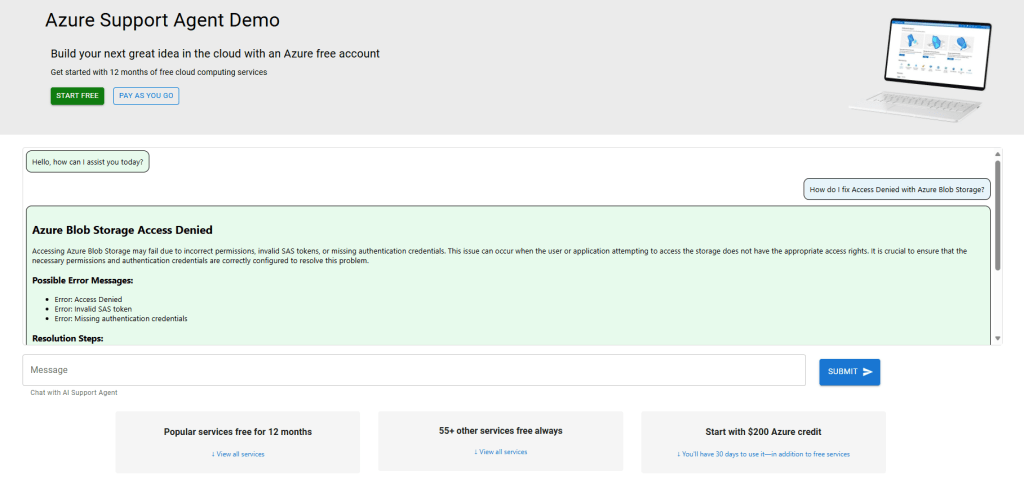
Each troubleshooting HTML document indexed in Azure AI Search contains a product ID, which facilitates the retrieval of additional information from Azure Cosmos DB. Given that this discussion focuses on Azure Blob Storage, inquiries regarding the product will yield further details from Azure Cosmos DB, as demonstrated below.

Chat History
The chat history is stored in Azure Cosmos DB, utilizing a session ID managed through React JS and the API. Each history document is assigned a time-to-live (TTL) of 24 hours. In the test conversation, four documents are maintained in the chat history—two corresponding to each user prompt and two for the responses generated by the LLM.

Clean-Up
After completing testing, delete any unused Azure resources or remove the entire resource group to avoid unnecessary costs. You may need to purge the Azure OpenAI resources before redeploying.
Conclusion
This GenAI RAG Solution provides an efficient, scalable, and context-aware customer support application using the power of Azure, .NET, Semantic Kernel, and React JS. By integrating Retrieval-Augmented Generation (RAG) and leveraging Bicep for infrastructure deployment and Azure Functions for event-driven processing, the solution offers enhanced accuracy and real-time responsiveness, making it a powerful tool for modern customer support systems.

 Stochastic Coder
Leave a reply to Azure Cosmos DB for MongoDB HNSW Vector Search – Stochastic Coder Cancel reply