
Chatbots have been a long-standing concept, but AI agents are advancing beyond basic human conversation to carry out tasks based on natural language, traditionally requiring coded logic. The effectiveness of AI agents, or agents, is contingent on the data they can access and the ‘tools’ or functions they can perform. This article will explore an AI agent solution for a travel assistant in a CruiseLine travel application. The AI travel agent, developed as a LangChain Agent, will utilize the robust vector search and document store capabilities of Azure Cosmos DB for MongoDB to address traveler inquiries and facilitate trip bookings. It will operate within a Python FastAPI backend and support user interactions through a React JS user interface.
In this article
- Prerequisites
- What are LangChain Agents
- Download the Project
- Load Travel Documents into Azure Cosmos DB for MongoDB
- Building Travel AI Agent with Python FastAPI
- Integrating AI Agent with React JS User Interface
Prerequisites
- If you don’t have an Azure subscription, create an Azure free account before you begin.
- Setup account for OpenAI API – Overview – OpenAI API
- Create an Azure Cosmos DB for MongoDB vCore by following this QuickStart.
- An IDE for Development, such as VS Code
- Python 3.11.4 installed on development environment.
What are LangChain Agents
LangChain Agents task themselves with making decisions about actions. Instead of following traditional hardcoded action sequences, which are common in chains, agents use a language model as a reasoning engine to decide on the actions to be performed and their sequence. In essence, agents give LLMs the autonomy to execute tasks. Our travel agent will assist users with finding and booking the perfect cruise by executing tasks that correspond to the user conversation.
Why use Azure Cosmos DB for MongoDB vCore?
By leveraging the Integrated Vector Database in Azure Cosmos DB for MongoDB vCore, we can ensure a seamless and efficient connection between our agent and the travel data stored in Azure Cosmos DB. This powerful integration allows for the storage, indexing, and querying of embeddings alongside supplementary data, thus providing the AI agent with the essential resources to enhance its travel assistance capabilities. With this comprehensive approach, our AI agent can access and utilize the relevant travel data effectively, contributing to a more streamlined and proactive travel assistance experience for users.
Download the Project
All of the code and sample datasets are available to you on my GitHub. In this repository you will find the following projects:
- loader – Python code for loading sample documents and vector embeddings in Azure Cosmos DB for MongoDB
- api – Python FastAPI for Hosting Travel AI Agent
- web – Web Interface with React JS

Download the project Travel-AI-Agent-React-FastAPI-and-Cosmos-DB-Vector-Store from my GitHub repository.
Load Travel Documents into Azure Cosmos DB for MongoDB
The GitHub repository contains a Python project located in the loader directory intended for loading the sample travel documents into Azure Cosmos DB. This section sets-up the project to load the documents. For a more comprehensive explanation of the code, refer to the article LangChain RAG with React, FastAPI, Cosmos DB Vector: Part 1.
Setting Up the Environment for Loader
We will utilize Python and LangChain to import data and vectors into Azure Cosmos DB for MongoDB vCore. Python 3.11.4 was employed for the development and testing of this tutorial.
First setup your Python virtual environment in the loader directory by running the following:
python -m venv venvActivate your environment and install dependencies in the loader directory:
venv\Scripts\activate
python -m pip install -r requirements.txt
Create a file, named ‘.env’ in the loader directory, to store the following environment variables.
OPENAI_API_KEY="**Your Open AI Key**"
MONGO_CONNECTION_STRING="mongodb+srv:**your connection string from Azure Cosmos DB**"| Environment Variable | Description |
|---|---|
| OPENAI_API_KEY | The key to connect to OpenAI API. If you do not possess an API key for Open AI, you can proceed by following the guidelines outlined here. |
| MONGO_CONNECTION_STRING | The Connection string for Azure Cosmos DB for MongoDB vCore – demonstrated here. |
Loading Documents and Vectors
Below is the Python file main.py; it serves as the central entry point for loading data into Azure Cosmos DB for MongoDB vCore. This code processes the sample travel data from the GitHub repository, including information about ships and destinations. Additionally, it generates travel itinerary packages for each ship and destination, allowing travelers to book them using the AI agent. The CosmosDBLoader is responsible for creating collections, vector embeddings, and indexes in our Azure Cosmos DB for MongoDB instance.
main.py
from cosmosdbloader import CosmosDBLoader
from itinerarybuilder import ItineraryBuilder
import json


cosmosdb_loader = CosmosDBLoader(DB_Name='travel')

#read in ship data
with open('documents/ships.json') as file:
        ship_json = json.load(file)

#read in destination data
with open('documents/destinations.json') as file:
        destinations_json = json.load(file)

builder = ItineraryBuilder(ship_json['ships'],destinations_json['destinations'])

# Create five itinerary pakages
itinerary = builder.build(5)

# Save itinerary packages to Cosmos DB
cosmosdb_loader.load_data(itinerary,'itinerary')

# Save destinations to Cosmos DB
cosmosdb_loader.load_data(destinations_json['destinations'],'destinations')

# Save ships to Cosmos DB, create vector store
collection = cosmosdb_loader.load_vectors(ship_json['ships'],'ships')

# Add text search index to ship name
collection.create_index([('name', 'text')])
Load the documents, vectors and create indexes by simply executing the following command from the loader directory:
python main.pyoutput:
--build itinerary--
--load itinerary--
--load destinations--
--load vectors ships--
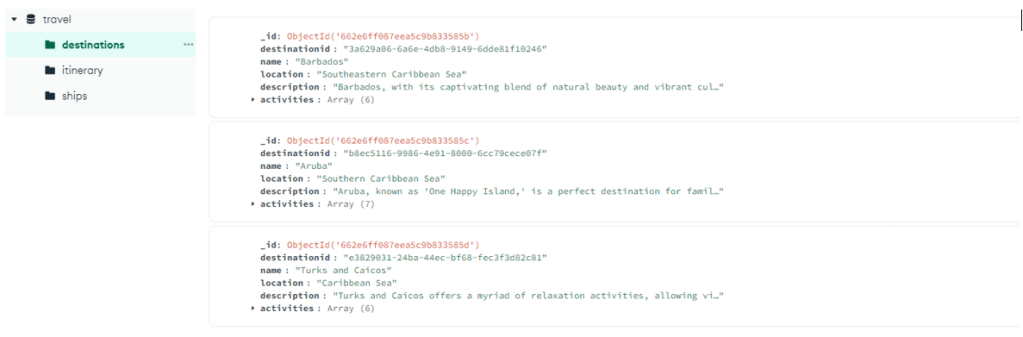
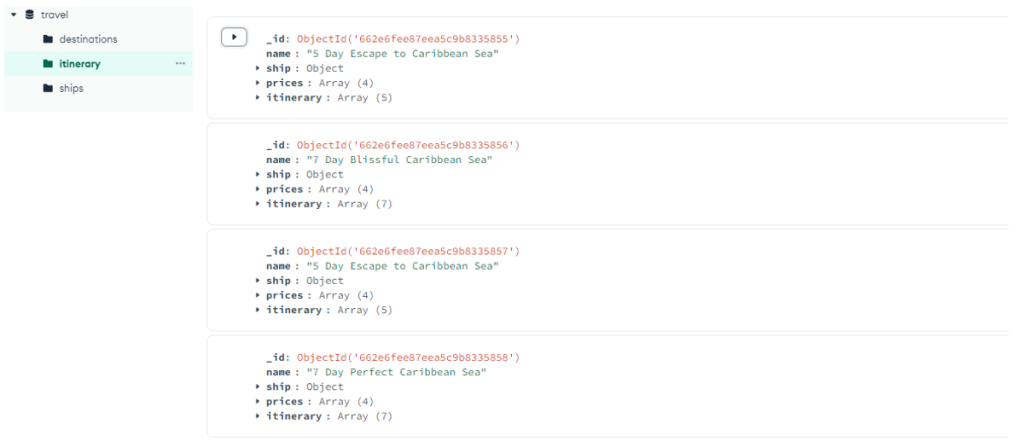
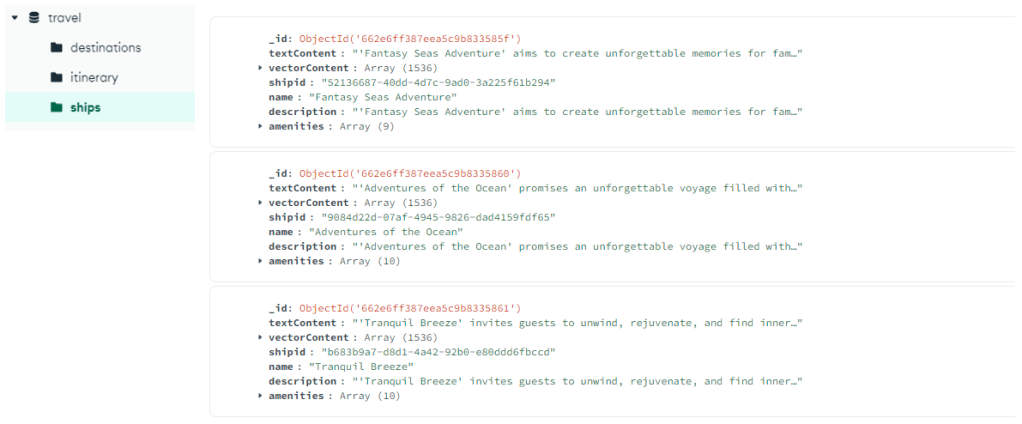
To verify the successful loading of the travel documents, use MongoDB Compass or a similar tool. The loader creates three collections: ships, destinations, and itinerary, as shown below.
Building Travel AI Agent with Python FastAPI
The AI travel agent will be hosted in a backend API using Python FastAPI, facilitating integration with the frontend user interface. The API project has been configured to process agent requests by grounding the LLM prompts against the data layer, specifically the Azure Cosmos DB for MongoDB vCore vectors and documents. Furthermore, the agent will make use of various tools, particularly the Python functions provided at the API service layer. This article will focus in on the code necessary for AI agents within the API code. For a more comprehensive examination of the code related to vector search with Python FastAPI, please refer to the article LangChain RAG with React, FastAPI, Cosmos DB Vector: Part 2.
The API project in the GitHub repository is structured as follows:
- Model – data modeling components using Pydantic models.
- Web – web layer components responsible for routing requests and managing communication.
- Service – service layer components responsible for primary business logic and interaction with data layer; LangChain Agent and Agent Tools.
- Data – data layer components responsible for interacting with Azure Cosmos DB for Mongo DB documents storage and vector search.

Setting Up the Environment for the API
Python version 3.11.4 was utilized for the development and testing of the API.
Setup your python virtual environment in the api directory.
python -m venv venvActivate your environment and install dependencies using the requirements file in the api directory:
venv\Scripts\activate
python -m pip install -r requirements.txt
Create a file, named ‘.env’ in the api directory, to store your environment variables.
OPENAI_API_KEY="**Your Open AI Key**"
MONGO_CONNECTION_STRING="mongodb+srv:**your connection string from Azure Cosmos DB**"| Environment Variable | Description |
|---|---|
| OPENAI_API_KEY | The key to connect to OpenAI API. If you do not possess an API key for Open AI, you can proceed by following the guidelines outlined here. |
| MONGO_CONNECTION_STRING | The Connection string for Azure Cosmos DB for MongoDB vCore – demonstrated here. |
With the environment configured and variables set up, we are ready to initiate the FastAPI server. Run the following command from the api directory to initiate the server.
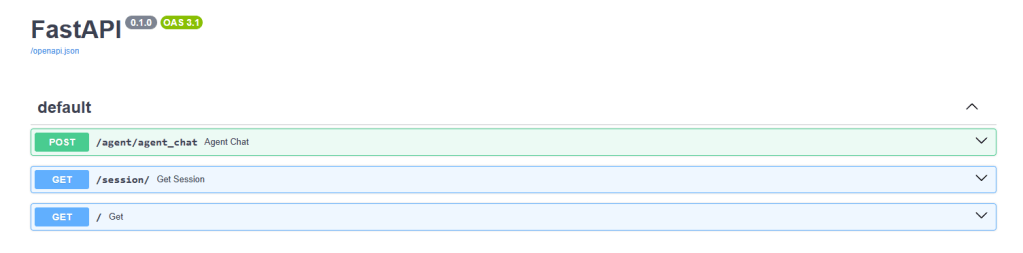
python app.pyThe FastAPI server launches on the localhost loopback 127.0.0.1 port 8000 by default. You can access the Swagger documents using the following localhost address: http://127.0.0.1:8000/docs
Using a session for the AI Agent Memory
It is imperative for the Travel Agent to have the capability to reference previously provided information within the ongoing conversation. This ability is commonly known as conversational ‘memory’ in the context of Language Model Models (LLMs). To achieve this objective, we will utilize the chat message history, which will be securely stored in our Azure Cosmos DB instance. Each chat session will have its history stored using a session ID to ensure that only messages from the current conversation session are accessible. This necessity is the reason behind the existence of a ‘Get Session’ method in our API. It is a placeholder method for managing web sessions in order to illustrate the use of chat message history.
Click Try It out for /session/.

{
  "session_id": "0505a645526f4d68a3603ef01efaab19"
}
For the purpose of the AI Agent, we only need to simulate a session, thus the stubbed-out method merely returns a generated session ID for tracking message history. In a practical implementation, this session would be stored in Azure Cosmos DB and potentially in React JS localStorage.
web/session.py
@router.get("/")
def get_session():
    return {'session_id':str(uuid.uuid4().hex)}
Start a Conversation with the AI Travel Agent
Let us utilize the obtained session ID from the step above to initiate a new dialogue with our AI agent in order to validate its functionality. We shall conduct our test by submitting the following phrase: “I want to take a relaxing vacation.”
Click Try It out for /agent/agent_chat.

example parameter
{
  "input": "I want to take a relaxing vacation.",
  "session_id": "0505a645526f4d68a3603ef01efaab19"
}
The initial execution will result in a recommendation for the Tranquil Breeze Cruise and the Fantasy Seas Adventure Cruise as they are anticipated to be the most ‘relaxing’ cruises available through the vector search. These documents have the highest score for similarity_search_with_score that is called in the data layer of our API, data.mongodb.travel.similarity_search(). For a more detailed examination of this code, please refer to the following link: Langchain Rag with React, FastAPI, Cosmos DB & Vector – Part 2.
The similarity search scores are displayed as output from the API for debugging purposes.
Output when calling data.mongodb.travel.similarity_search()
0.8394561085977978
0.8086545112328692
2
If documents are not being returned for vector search modify the similarity_search_with_score limit or the score filter value as needed ([doc for doc, score in docs if score >=.78]). in data.mongodb.travel.similarity_search()
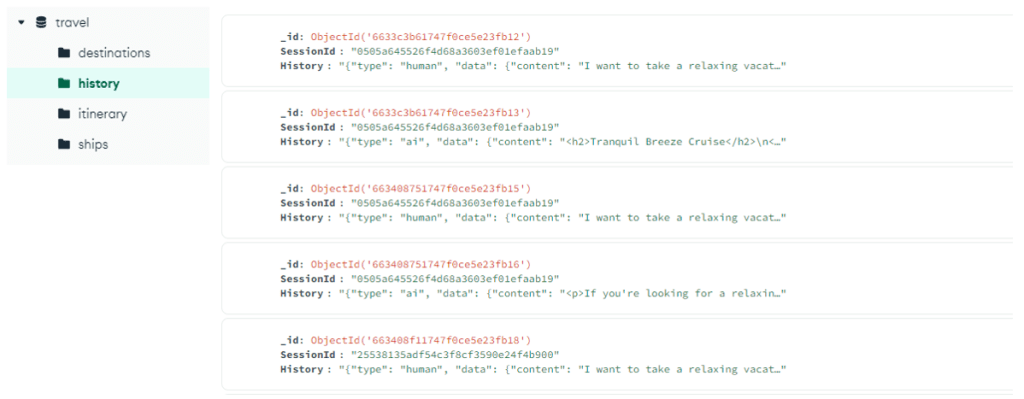
Calling the ‘agent_chat’ for the first time will create a new collection named ‘history’ in Azure Cosmos DB for MongoDB to store the conversation by session. This will enable the agent to access the stored chat message history as needed. Subsequent executions of ‘agent_chat’ with the same parameters will produce varying results as it will draw from memory.
Walkthrough the AI Agent
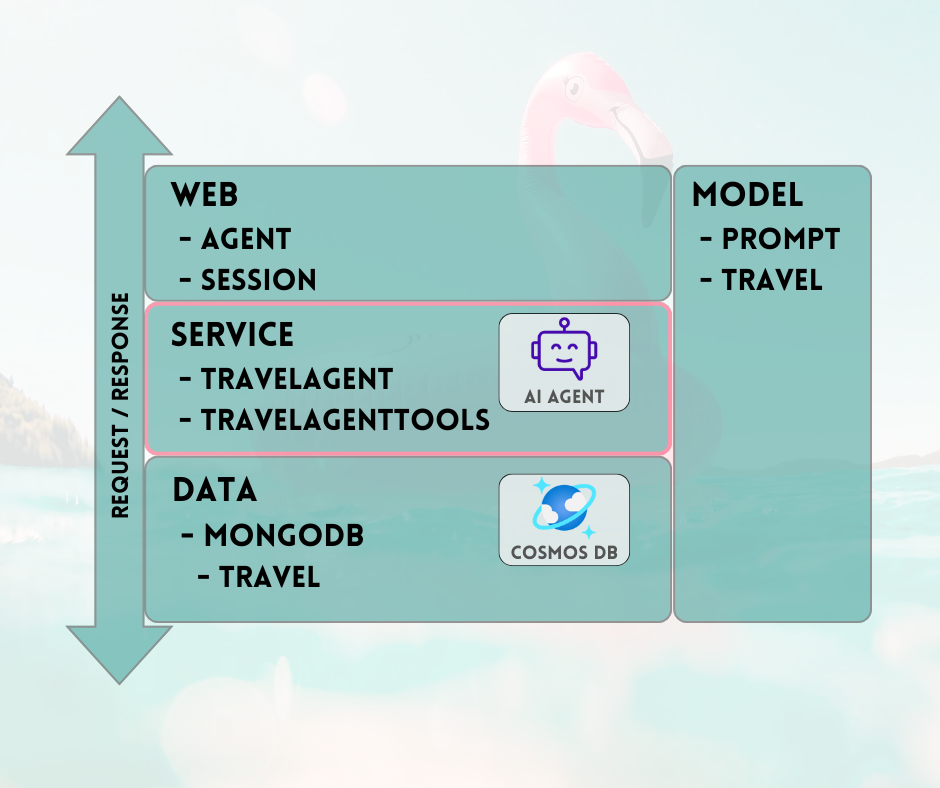
When integrating the AI Agent into the API, the web search components are responsible for initiating all requests. This is followed by the search service, and finally the data components. In our specific case, we utilize MongoDB data search, which connects to Azure Cosmos DB for MongoDB vCore. The layers facilitate the exchange of Model components, with the AI Agent and AI Agent Tool code residing in the service layer. This approach was implemented to enable the seamless interchangeability of data sources and to extend the capabilities of the AI Agent with additional, more intricate functionalities or ‘tools’.
The AI Agent code within the service layer will be the primary focus, as we have already addressed the Web and Data layers in LangChain RAG with React, FastAPI, Cosmos DB Vector: Part 2 with minor modifications.
Service Layer
The service layer forms the cornerstone of our core business logic. In this particular scenario, the service layer plays a crucial role as the repository for the LangChain agent code, facilitating the seamless integration of user prompts with Azure Cosmos DB data, conversation memory, and agent functions for our AI Agent.
The service layer employs a singleton pattern module for handling agent-related initializations in the init.py file.
service/init.py
from dotenv import load_dotenv
from os import environ
from langchain.globals import set_llm_cache
from langchain_openai import ChatOpenAI
from langchain_mongodb.chat_message_histories import MongoDBChatMessageHistory
from langchain_core.prompts import ChatPromptTemplate, MessagesPlaceholder
from langchain_core.runnables.history import RunnableWithMessageHistory
from langchain.agents import AgentExecutor, create_openai_tools_agent
from service import TravelAgentTools as agent_tools

load_dotenv(override=False)


chat : ChatOpenAI | None=None
agent_with_chat_history : RunnableWithMessageHistory | None=None

def LLM_init():
    global chat,agent_with_chat_history
    chat = ChatOpenAI(model_name="gpt-3.5-turbo-16k",temperature=0)
    tools = [agent_tools.vacation_lookup, agent_tools.itinerary_lookup, agent_tools.book_cruise ]

    prompt = ChatPromptTemplate.from_messages(
    [
        (
            "system",
            "You are a helpful and friendly travel assistant for a cruise company. Answer travel questions to the best of your ability providing only relevant information. In order to book a cruise you will need to capture the person's name.",
        ),
        MessagesPlaceholder(variable_name="chat_history"),
        ("user", "Answer should be embedded in html tags. {input}"),
         MessagesPlaceholder(variable_name="agent_scratchpad"),
    ]
    )

    #Answer should be embedded in html tags. Only answer questions related to cruise travel, If you can not answer respond with \"I am here to assist with your travel questions.\".


    agent = create_openai_tools_agent(chat, tools, prompt)
    agent_executor  = AgentExecutor(agent=agent, tools=tools, verbose=True)

    agent_with_chat_history = RunnableWithMessageHistory(
        agent_executor,
        lambda session_id: MongoDBChatMessageHistory( database_name="travel",
                                                 collection_name="history",
                                                   connection_string=environ.get("MONGO_CONNECTION_STRING"),
                                                   session_id=session_id),
        input_messages_key="input",
        history_messages_key="chat_history",
)

LLM_init()
The init.py file commences by initiating the loading of environment variables from a .env file utilizing the load_dotenv(override=False) method. Following this, a global variable named agent_with_chat_history is instantiated for the agent, intended for use by our TravelAgent.py. The LLM_init() method is invoked during module initialization to configure our AI agent for conversation via the API web layer. The OpenAI Chat object is instantiated using the GPT-3.5 model, incorporating specific parameters such as model name and temperature. The chat object, tools list, and prompt template are combined to generate an AgentExecutor, which operates as our AI Travel Agent. Lastly, the agent with history, agent_with_chat_history, is established using RunnableWithMessageHistory with chat history (MongoDBChatMessageHistory), enabling it to maintain a complete conversation history via Azure Cosmos DB for MongoDB.
Prompt
The LLM prompt initially began with the simple statement “You are a helpful and friendly travel assistant for a cruise company.” However, through testing, it was determined that more consistent results could be obtained by including the instruction “Answer travel questions to the best of your ability, providing only relevant information. To book a cruise, capturing the person’s name is essential.” The results are presented in HTML format to enhance the visual appeal within the web interface.
Agent Tools
Tools are interfaces that an agent can use to interact with the world.
When creating an agent, it is essential to furnish it with a set of tools that it can utilize. The @tool decorator offers the most straightforward approach to defining a custom tool. By default, the decorator uses the function name as the tool name, although this can be replaced by providing a string as the first argument. Moreover, the decorator will utilize the function’s docstring as the tool’s description, thus requiring the provision of a docstring.
service/TravelAgentTools.py
from langchain_core.tools import tool
from langchain.docstore.document import Document
from data.mongodb import travel
from model.travel import Ship


@tool
def vacation_lookup(input:str) -> list[Document]:
    """find information on vacations and trips"""
    ships: list[Ship] = travel.similarity_search(input)
    content = ""

    for ship in ships:
        content += f" Cruise ship {ship.name}  description: {ship.description} with amenities {'/n-'.join(ship.amenities)} "

    return content

@tool
def itinerary_lookup(ship_name:str) -> str:
    """find ship itinerary, cruise packages and destinations by ship name"""
    it = travel.itnerary_search(ship_name)
    results = ""

    for i in it:
        results += f" Cruise Package {i.Name} room prices: {'/n-'.join(i.Rooms)} schedule: {'/n-'.join(i.Schedule)}"

    return results


@tool
def book_cruise(package_name:str, passenger_name:str, room: str )-> str:
    """book cruise using package name and passenger name and room """
    print(f"Package: {package_name} passenger: {passenger_name} room: {room}")

    # LLM defaults empty name to John Doe
    if passenger_name == "John Doe":
        return "In order to book a cruise I will need to know your name."
    else:
        if room == '':
            return "which room would you like to book"
        return "Cruise has been booked, ref number is 343242"
In the TravelAgentTools.py file, three specific tools are defined. The first tool, vacation_lookup, conducts a vector search against Azure Cosmos DB for MongoDB, using a similarity_search to retrieve relevant travel-related material. The second tool, itinerary_lookup, retrieves cruise package details and schedules for a specified cruise ship. Lastly, book_cruise is responsible for booking a cruise package for a passenger. I have found that specific instructions (“In order to book a cruise I will need to know your name.”) are necessary to ensure the capture of the passenger’s name and room number for booking the cruise package. This is in spite of including such instructions in the LLM prompt.
AI Agent
Next will examine the code for the agent. The fundamental concept underlying agents is to utilize a language model for selecting a sequence of actions to execute.
service/TravelAgent.py
from .init import agent_with_chat_history
from model.prompt import PromptResponse
import time
from dotenv import load_dotenv

load_dotenv(override=False)


def agent_chat(input:str, session_id:str)->str:

    start_time = time.time()

    results=agent_with_chat_history.invoke(
    {"input": input},
    config={"configurable": {"session_id": session_id}},
    )

    return  PromptResponse(text=results["output"],ResponseSeconds=(time.time() - start_time))
The TravelAgent.py file is straightforward, as our agent, agent_with_chat_history, and its dependencies (tools, prompt, and LLM) are initialized and configured in the init.py file. In this file, we call upon our agent using the input received from the user, along with the session ID for our conversation memory. Subsequently, we return a PromptResponse (model/prompt) containing the agent’s output and response time.
Integrating AI Agent with React JS User Interface
With the successful loading of the data and accessibility of our AI Agent through our API, we can now complete the solution by establishing a web user interface using React JS for our travel website. By harnessing the capabilities of React JS, we can illustrate the seamless integration of our AI agent into a travel site, enhancing the user experience with a conversational travel assistant for inquiries and bookings.
Setting Up the Environment for React JS
Install Node.js
Please follow the steps outlined here to download and install Node.JS.
Setting up React Project
With Node.js installed, it is necessary to proceed by installing the dependencies before testing out the React interface.
Run the following command from the web directory to perform a clean install of project dependencies, this may take some time.
npm ciNext, it is essential to create a file named ‘.env’ within the web directory to facilitate the storage of environment variables. Subsequently, you should include the following details in the newly created ‘.env‘ file.
REACT_APP_API_HOST=http://127.0.0.1:8000| Environment Variable | Description |
|---|---|
| REACT_APP_API_HOST | Url to our FastAPI server. Default to our local machine: http://127.0.0.1:8000 |
Now, we have the ability to execute the following command from the web directory to initiate the React web user interface.
npm startRunning the command above will launch the React JS web application.

Walkthrough React JS Web Interface
The web project of the GitHub repository is a straightforward application to facilitate user interaction with our AI agent. The primary components required to converse with the agent are TravelAgent.js and ChatLayout.js. The Main.js file serves as the central module or user landing page.

Main
The Main component serves as the central manager of the application, acting as the designated entry point for routing. Within the render function, it produces JSX code to delineate the main page layout. This layout encompasses placeholder elements for the application such as logos and links, a section housing the travel agent component (further details to come), and a footer containing a sample disclaimer regarding the application’s nature.
main.js
import React, {  Component } from 'react'
import { Stack, Link, Paper } from '@mui/material'
import TravelAgent from './TripPlanning/TravelAgent'

import './Main.css'

class Main extends Component {
  constructor() {
    super()

  }

  render() {
    return (
      <div className="Main">
        <div className="Main-Header">
          <Stack direction="row" spacing={5}>
            <img src="/mainlogo.png" alt="Logo" height={'120px'} />
            <Link
              href="#"
              sx={{ color: 'white', fontWeight: 'bold', fontSize: 18 }}
              underline="hover"
            >
              Ships
            </Link>
            <Link
              href="#"
              sx={{ color: 'white', fontWeight: 'bold', fontSize: 18 }}
              underline="hover"
            >
              Destinations
            </Link>
          </Stack>
        </div>
        <div className="Main-Body">
          <div className="Main-Content">
            <Paper elevation={3} sx={{p:1}} >
            <Stack
              direction="row"
              justifyContent="space-evenly"
              alignItems="center"
              spacing={2}
            >

                <Link href="#">
                  <img
                    src={require('./images/destinations.png')} width={'400px'} />
                </Link>
                <TravelAgent ></TravelAgent>
                <Link href="#">
                  <img
                    src={require('./images/ships.png')} width={'400px'} />
                </Link>

              </Stack>
              </Paper>
          </div>
        </div>
        <div className="Main-Footer">
          <b>Disclaimer: Sample Application</b>
          <br />
          Please note that this sample application is provided for demonstration
          purposes only and should not be used in production environments
          without proper validation and testing.
        </div>
      </div>
    )
  }
}

export default Main
Travel Agent
The Travel Agent component has a straightforward purpose – capturing user inputs and displaying responses. It plays a key role in managing the integration with the backend AI Agent, primarily by capturing sessions and forwarding user prompts to our FastAPI service. The resulting responses are stored in an array for display, facilitated by the Chat Layout component.
TripPlanning/TravelAgent.js
import React, { useState, useEffect } from 'react'
import { Button, Box, Link, Stack, TextField } from '@mui/material'
import SendIcon from '@mui/icons-material/Send'
import { Dialog, DialogContent } from '@mui/material'
import ChatLayout from './ChatLayout'
import './TravelAgent.css'

export default function TravelAgent() {
  const [open, setOpen] = React.useState(false)
  const [session, setSession] = useState('')
  const [chatPrompt, setChatPrompt] = useState(
    'I want to take a relaxing vacation.',
  )
  const [message, setMessage] = useState([
    {
      message: 'Hello, how can I assist you today?',
      direction: 'left',
      bg: '#E7FAEC',
    },
  ])

  const handlePrompt = (prompt) => {
    setChatPrompt('')
    setMessage((message) => [
      ...message,
      { message: prompt, direction: 'right', bg: '#E7F4FA' },
    ])
    console.log(session)
    fetch(process.env.REACT_APP_API_HOST + '/agent/agent_chat', {
      method: 'POST',
      headers: {
        'Content-Type': 'application/json',
      },
      body: JSON.stringify({ input: prompt, session_id: session }),
    })
      .then((response) => response.json())
      .then((res) => {
        setMessage((message) => [
          ...message,
          { message: res.text, direction: 'left', bg: '#E7FAEC' },
        ])
      })
  }

  const handleSession = () => {
    fetch(process.env.REACT_APP_API_HOST + '/session/')
      .then((response) => response.json())
      .then((res) => {
        setSession(res.session_id)
      })
  }

  const handleClickOpen = () => {
    setOpen(true)
  }

  const handleClose = (value) => {
    setOpen(false)
  }

  useEffect(() => {
    if (session === '') handleSession()
  }, [])

  return (
    <Box>
      <Dialog onClose={handleClose} open={open} maxWidth="md" fullWidth="true">
        <DialogContent>
          <Stack>
            <Box sx={{ height: '500px' }}>
              <div className="AgentArea">
                <ChatLayout messages={message} />
              </div>
            </Box>
            <Stack direction="row" spacing={0}>
              <TextField
                sx={{ width: '80%' }}
                variant="outlined"
                label="Message"
                helperText="Chat with AI Travel Agent"
                defaultValue="I want to take a relaxing vacation."
                value={chatPrompt}
                onChange={(event) => setChatPrompt(event.target.value)}
              ></TextField>
              <Button
                variant="contained"
                endIcon={<SendIcon />}
                sx={{ mb: 3, ml: 3, mt: 1 }}
                onClick={(event) => handlePrompt(chatPrompt)}
              >
                Submit
              </Button>
            </Stack>
          </Stack>
        </DialogContent>
      </Dialog>
      <Link href="#" onClick={() => handleClickOpen()}>
        <img src={require('.././images/planvoyage.png')} width={'400px'} />
      </Link>
    </Box>
  )
}
Click on ‘Effortlessly plan your voyage’ to launch the travel assistant, TravelAgent.js.


Chat Layout
The Chat Layout component, as indicated by its name, oversees the arrangement of the chat. It systematically processes the chat messages and implements the designated formatting specified in the message JSON object.
TripPlanning/ChatLayout.py
import React from 'react'
import {  Box, Stack } from '@mui/material'
import parse from 'html-react-parser'
import './ChatLayout.css'

export default function ChatLayout(messages) {
  return (
    <Stack direction="column" spacing="1">
      {messages.messages.map((obj, i = 0) => (
        <div className="bubbleContainer" key={i}>
          <Box
            key={i++}
            className="bubble"
            sx={{ float: obj.direction, fontSize: '10pt', background: obj.bg }}
          >
            <div>{parse(obj.message)}</div>
          </Box>
        </div>
      ))}
    </Stack>
  )
}
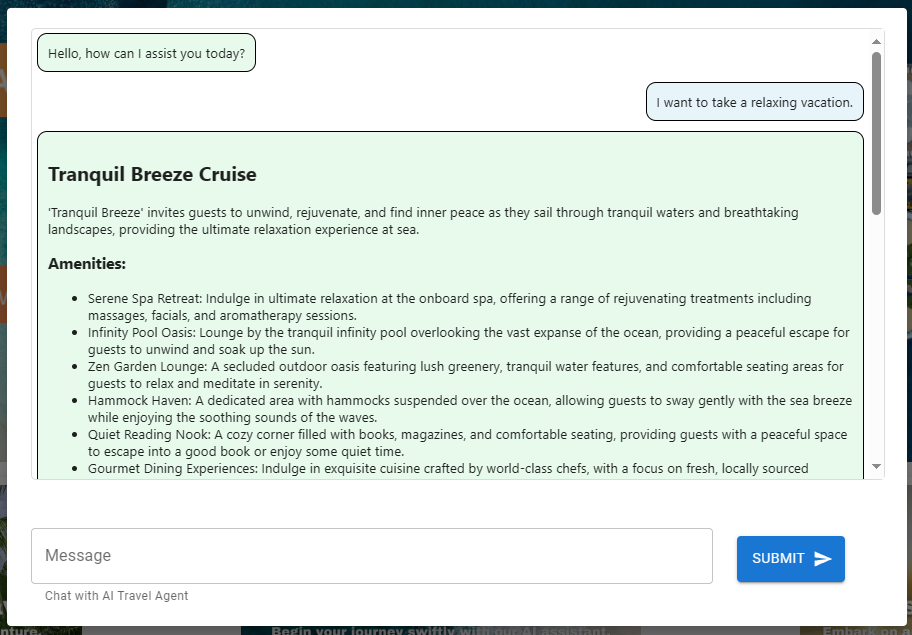
User prompts are moved to the right and colored blue, while the Travel Ai Agent responses are moved to the left and colored green. As you can see in the image below, the HTML formatted responses are accounted for in the conversation.
Final Reflections
With this article I wanted to share a solution that revolves around an AI agent (LangChain agent) responsible for handling end user web requests for processing transactions. I have observed that when the agent functions as intended, it presents an exhilarating opportunity. However, when the AI veers off course or diverges from the parameters provided, it raises concerns regarding consistency and user experience. I encourage you to explore this concept as well and am keen to receive your insights on employing such an agent. It has been my endeavor to keep the solution sufficiently simple to enable reusability, while also aiding in visualizing a potential method for integrating such an agent into your solutions. I would love to hear about your experiences with implementing AI agents in the comments below.
Explore the guide on Deploying AI Agent LLM Web Application on Azure App Service for steps on utilizing GitHub Action to deploy this travel agent solution to Azure.


Leave a Reply